A booking is the best signal a lead can give you. They didn’t just fill in a form. They chose a time to talk to you. Then it sits in a calendar invite, and the CRM never hears about it, so the deal stays at “new lead” and nobody notices the call went well or didn’t happen. Calendar booking to CRM automation fixes that, and it’s the practical way to sync bookings to a CRM so the record matches what’s actually happening.
How the tools talk to each other
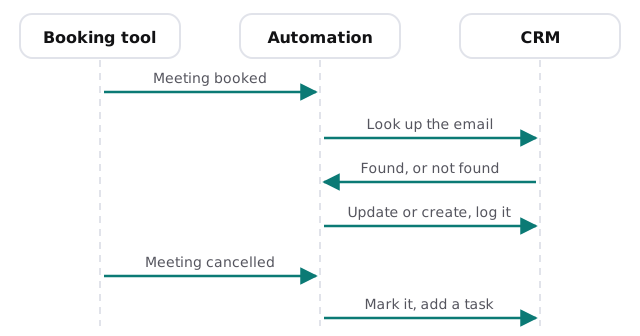
Booking tools can announce events to other systems. Calendly’s webhook documentation, for instance, lists notifications for when a new event is scheduled, when an existing one is cancelled, and when a routing form is submitted. Other booking tools offer similar hooks, so we check what yours supports before designing anything.
The step that decides everything: matching
Anyone can push a new contact into a CRM. The skill is deciding whether this person is already there.
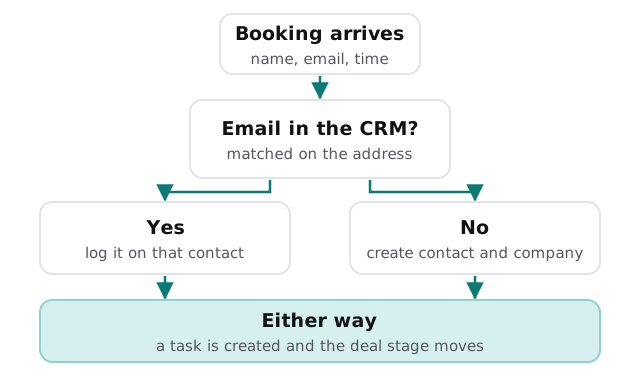
Match on email first, then on company name or domain. A person who books from a personal address and later from a work one will slip past, and a good setup flags that for a human, not guessing.
What gets written, and where
| From the booking | Goes to the CRM as | Why |
|---|---|---|
| Name and email | Contact, matched or created | One record per person |
| Meeting time and type | A logged meeting or activity | The history stays honest |
| Answers to booking questions | Notes or custom fields | The rep prepares before the call |
| Which link they used | Lead source | Shows which pages bring bookings |
| Cancel or reschedule notice | Status change and a task | The pipeline matches reality |
What usually goes wrong
- Duplicates. Every booking makes a new contact because matching was skipped.
- Dead meetings. Cancellations never reach the CRM, so reports show calls that didn’t happen.
- Missing context. The booking questions are answered, then thrown away.
- Wrong owner. Everything lands with the account admin and nobody else sees it.
- Silent failure. A connection breaks, bookings stop appearing, and nobody notices for weeks.
The last one is the most expensive. Any setup we build sends an alert to a named person if bookings stop arriving or an update fails.
One Tuesday
A prospect books a Thursday call at 9pm on Tuesday. By the time anyone is in the next morning, the CRM shows the meeting on their record, tagged with the page they booked from, and the owner has a prep task with the answers they gave. On Wednesday afternoon the prospect cancels. The meeting is marked cancelled, a task asks someone to offer a new time, and the deal doesn’t sit at “meeting booked” for a month.
Signs you need it
- You open the calendar and the CRM side by side to see who’s booked.
- Reps copy details out of invites by hand.
- Your pipeline report shows calls that never happened.
- You can’t tell which booking links produce deals.
Rather build it yourself?
For a straightforward link between one booking tool and one CRM, a connector may do the job. Our guide to setting up Zapier for your team covers building that kind of connection, and the CRM guides for HubSpot and Pipedrive cover getting the CRM ready for it. We step in when you need matching rules, cancellations handled properly, or several booking tools feeding one CRM.
What we need from you
- Your booking tool and your CRM.
- A rough rule for who should own each kind of booking.
- Three or four recent bookings to test with, including a cancelled one.
We begin with a plan and a fixed quote. A person approves the matching and owner rules before the first real booking runs through them.
The calendar knows the meeting happened. The CRM should know too, without anyone typing it.