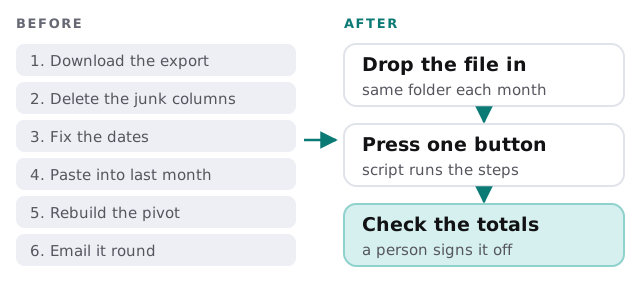
Every office has a spreadsheet job that someone dreads. Download the export, delete eight columns, fix the dates, paste it under last month, rebuild the pivot, send it round. An Excel automation expert records that routine once, hardens it, and gives you a way to run it without remembering the steps. It is also what people mean by an Excel VBA developer, or by anyone who can automate Excel reports without moving them to new software.
Pick the lowest rung that works
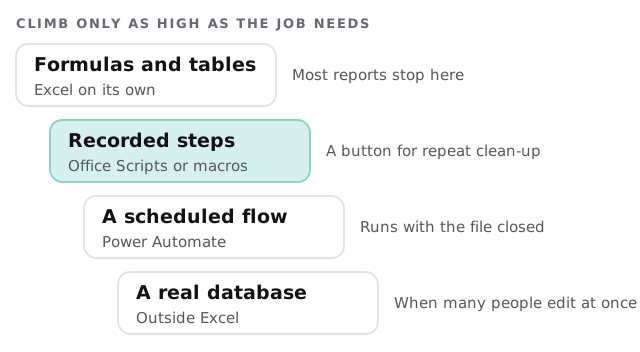
Not every job needs code, and not every job should stay in Excel. We choose the simplest rung that does the job, and say honestly when a task has outgrown the workbook.
What Microsoft’s own tools offer
Microsoft describes Office Scripts as a way to automate everyday Excel tasks. An action recorder turns the steps you perform into a reusable script, and a code editor lets you add logic such as conditions and loops. A script can be shared with colleagues who open the workbook, and run from a button. Connected to Power Automate, it can run on a schedule or in response to an email, even when nobody has the workbook open.
One detail worth knowing: Microsoft’s documentation notes that scheduling directly inside Office Scripts is temporarily disabled and points to Power Automate for scheduling. Product features move, so we check the current documentation before we promise a design.
| If your situation is… | We would usually reach for… |
|---|---|
| One person, one desktop file, a repeat clean-up | A recorded script on a button |
| A file that must update when an email or form arrives | A Power Automate flow calling a script |
| An existing macro nobody dares to touch | Tidy it, document it, add checks |
| Ten people editing, slow file, mixed versions | A database and a simple front end |
None of these is better in general. They fit different situations, and a short conversation about how the file is actually used decides which one applies. We also ask who else opens the workbook, because a routine that works on your laptop may fail on a colleague’s.
A month-end report, before and after
How an engagement runs
- Watch the job done by hand. We sit with whoever does it today and note every step, including the odd ones.
- Find the traps. A column that moves, a date that arrives as text, a total that nobody has checked in a year.
- Build the routine. Record the steps, then rewrite them so they survive a changed column order.
- Add checks. The script compares its totals with the source and stops if they differ.
- Run side by side. One real month, done both ways.
- Hand over. Notes on what it does, where it lives and who can change it.
Where Excel automation goes wrong
- Hard-coded cell addresses. Someone inserts a row and the whole report shifts.
- Hidden logic. One person understands the macro, and they have left.
- No stop on errors. A broken import produces a plausible-looking wrong answer.
- Everything in one file. Data, formulas and macros tangled together.
Rather build it yourself?
Recording a script and putting a button on a sheet is a good first attempt. For running it on a timetable, our guide to setting up Power Automate for your team covers the flow side. If you want to see how a no-code connector fits alongside, our page on a Zapier expert for small business explains that approach.
What we need from you
- The workbook, with sensitive rows removed if you prefer.
- A description of the monthly routine, or a screen recording of it.
- The figures that must always match something else.
We start with a plan and a fixed quote. A person approves the checks with you before the automation is used for anything that goes outside the business.
If the spreadsheet only works when one particular person runs it, you do not have a process. You have a person.