Teams move from HubSpot to Salesforce for sensible reasons: a sales process that has outgrown simple pipelines, reporting that needs more depth, or a parent company that already runs on Salesforce. A HubSpot to Salesforce migration is mostly a mapping exercise, and the mapping starts with the fact that the two tools model people differently. If you want a wider guide, CRM data migration for small business covers the planning that applies to any move.
What moves cleanly
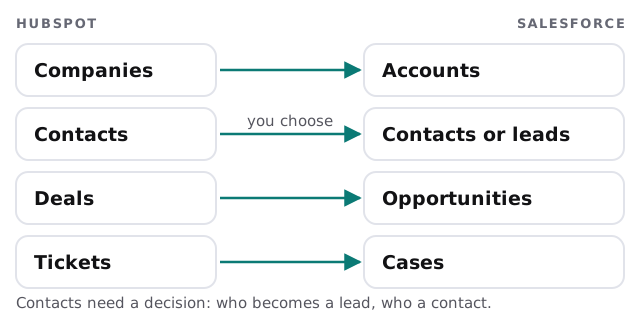
The main record types have clear equivalents on the other side.
Getting data out is routine. HubSpot’s export tool produces CSV, and a few facts shape how we run it:
- Up to 300 exports in a rolling 24 hours, three at a time.
- Exports over a million rows split into several files.
- Associations come out as record IDs, up to one thousand per column by default, with an all-associated-records option on CSV only.
- Anyone running an export needs Export permissions.
Those associations matter more than they look. They are how a contact stays linked to the right company, and how a deal stays linked to both. We load companies first, then contacts, then deals, so each record has something to attach to.
What needs rebuilding
Records are data. Everything that acts on records is logic, and logic doesn’t export.
- Workflows. Each one is read, described in a sentence, and rebuilt in Salesforce’s own automation, or dropped if nobody needs it.
- Forms. Website forms have to post to Salesforce or to a new form tool, and the matching rule goes with them. See website forms into a CRM.
- Lists and segments. Rebuilt as views, reports or campaigns.
- Email templates and sequences. Copied by hand and reviewed for links.
- Properties. Dropdowns, checkboxes and dates map to Salesforce field types one at a time. Some need a different type.
- Reports and dashboards. Rebuilt from the questions your team asks, not from the old charts.
Who becomes a lead
HubSpot has contacts at different lifecycle stages. Salesforce treats a lead as someone you haven’t qualified, and a contact as a person at an account. So before loading, each HubSpot contact gets a rule: if there is a customer or open deal, load as a contact under an account. If there is no company or deal, load as a lead. We write the rule down and test it on a sample.
The cut-over
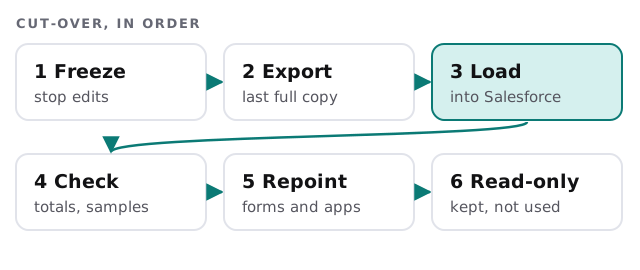
- Freeze. Agree a moment after which nobody edits in HubSpot.
- Export. One full set, kept untouched as the safety copy.
- Load. Into Salesforce, in dependency order.
- Check. Compare counts, then have your best salesperson review a sample.
- Repoint. Website forms, email tools and any connected apps go to Salesforce.
- Read-only. HubSpot stays available for lookups until the team stops needing it.
If you only want to keep HubSpot for marketing
That is a different job: two systems that share records, not a move. It needs a sync with clear rules about which system owns which field. Say so at the start, because a sync and a migration are planned very differently.
What we need from you
- Admin access to HubSpot, and to Salesforce with the rights to load data.
- Someone who can say what a “lead” means in your business.
- A list of the workflows and forms people rely on, longest-standing first.
- A date after which the old system is read-only.
If you are weighing Salesforce for the first time, our guide to setting up Salesforce for your team shows what you are signing up for.
Records are the easy half of a migration. The workflows are where the unseen work lives.