Some teams reach HubSpot with nothing. Others arrive with a spreadsheet that has run the business for years: one tab per salesperson, a column called “Notes 2”, and a few contacts in blue because someone once meant to follow up. HubSpot setup for small business is the job of turning either starting point into an account the whole team opens every morning, instead of one person’s side project.
Start with how you sell, not with settings
Before anyone clicks in HubSpot, write down your sales process in plain sentences. Where does a lead come from? What happens when someone replies? Who decides to send a quote? Those sentences become your pipeline stages, and they are much easier to change on paper than inside a configured account.
Then decide who needs to see what. A bookkeeper doesn’t need every deal note. A new hire shouldn’t be able to export the whole customer list on day one.
The order we build in
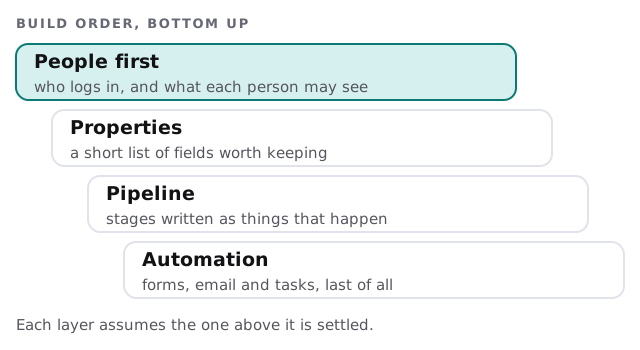
- Users and access. One Super Admin, then each person added with permissions that match their job. HubSpot requires Super Admin permissions to create users and customize their permissions.
- Properties. Keep the standard fields where they fit. Add a custom one only when a report or a process needs it.
- Pipeline. Stages named for events, such as “quote sent”, not for hopes, such as “warm”.
- Import. Your existing contacts and companies, loaded once and checked.
- Capture. A website form, and each person’s inbox connected, so records fill themselves.
- Training. A short session at a real desk with real records, not a slide deck.
Coming from a spreadsheet
The sheet is where most first builds go wrong. HubSpot’s import guide asks for a file in .csv, .xlsx or .xls format with a single sheet, where each column header corresponds to a HubSpot property, in any order, and fewer than 1,000 columns. It also says a unique identifier is needed to match rows to existing records. For contacts that is email. For companies it is the domain name. Without one, the import creates duplicates.
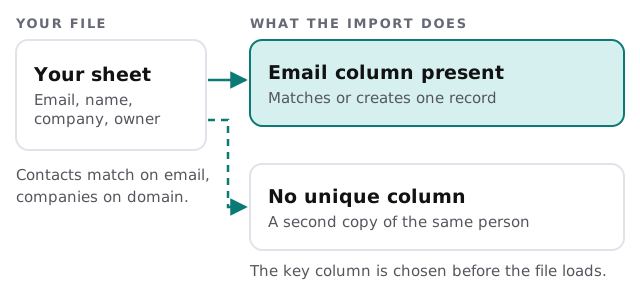
So the cleanup is mostly this: one row per person, one spelling per company, a real email wherever you have one, and the owner of each record in its own column. If your data lives in more than one sheet or system, our page on moving a spreadsheet into a CRM covers the matching in more detail.
Where the starting point changes the plan
| You are starting from | First job | Watch for |
|---|---|---|
| A blank account | Describe the sales process | Building features nobody asked for |
| One spreadsheet | Pick the key column and clean | Duplicate people under two spellings |
| Several sheets and an inbox | Merge into one list before loading | Two owners claiming the same customer |
| Another CRM | A data migration plan | Fields that have no home in HubSpot |
What we need from you
- Whoever will be Super Admin, and a list of the people who need accounts.
- Your spreadsheet or export, as it is. We clean a copy.
- Two or three real deals you can talk us through, from first contact to paid.
- The email address and website forms where leads arrive today.
What it feels like once it’s in use
Someone opens a contact and sees the whole history in one place: the form they filled in, the email last week, the call note. Nobody asks “who has this one?” because the owner is on the record. A forgotten lead shows up on a task list instead of in someone’s memory. That is the point of a first build, and it is deliberately modest. The pieces that need more thought, such as website forms feeding the CRM or a billing connection, come once the basics are trusted.
Rather build it yourself?
A small team with a tidy sheet can do this. Our guide to setting up HubSpot for your team walks through users, email and a first import. If you would rather hand it over, the free IT check is a good first step, and we reply with a plan and a fixed quote.
A CRM people trust is a small one, filled in properly, on day one.