Multi factor authentication setup for small business often goes wrong in one of two ways. Either it’s switched on everywhere on a Monday and the help desk drowns, or it’s switched on “for most people” and the one unprotected account is the one that gets phished. Done in order, an MFA setup service really is a few small steps. Two-factor authentication for employees only works when it covers the accounts attackers want first.
Pick the method first
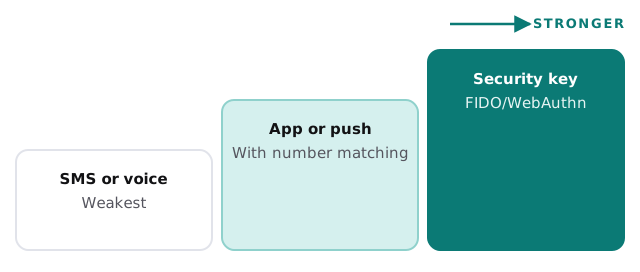
Not all MFA is equal. CISA calls phishing-resistant MFA the standard to aim for, and says the only widely available form is FIDO/WebAuthn, such as a hardware security key. If you can’t get there yet, it suggests number matching, where the user types a number shown on the sign-in screen, to block push-notification spam. Its fact sheet flags text and voice codes as exposed to interception and SIM swapping.
Who goes first
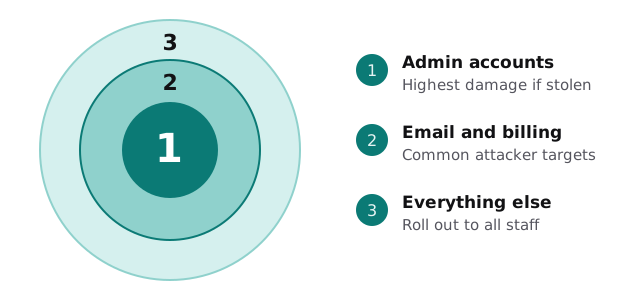
Start where a stolen password does the most harm and work outward. CISA singles out email, remote access and billing systems as the key targets for organizations.
If you’re on Microsoft 365
Microsoft’s security defaults bundle the basics for tenants that don’t use Conditional Access. They’re free and meant for organizations that don’t know where to start.
| What it does | Why it matters |
|---|---|
| Requires all users to register for MFA | Nobody is left on a password alone |
| Requires administrators to use MFA every time | Admin accounts are the biggest prize |
| Blocks legacy authentication | Old protocols can’t do MFA, so attackers use them to skip it |
| Uses the Authenticator app with a number to enter | Reduces approve-it-by-reflex mistakes |
Two cautions come straight from Microsoft’s page. Don’t disable authentication methods while security defaults are on, because you can lock yourself out. And check that nothing important depends on legacy sign-in first: a scanner that emails scans may need new settings. Microsoft also recommends two cloud-only emergency access accounts for the day normal admins are locked out. Google Workspace has its own equivalent, called 2-step verification, with the same order of play.
Setup, in order
- List accounts that matter. Admins, email, accounting, banking, remote access.
- Find the old stuff. Scanners, shared mailboxes, old Outlook versions and any app that signs in with just a password.
- Choose the method. Authenticator app for staff, security keys for admins if you can.
- Turn it on for admins first. Have them confirm they can still sign in before anyone else is enrolled.
- Brief staff. Show what the prompt looks like and who to ask. A two-minute note beats a stack of tickets.
- Enrol in small groups. Fix what breaks while the group is small.
- Write the recovery rule. Who replaces a lost phone, and how they check it’s really the person.
When a phone goes missing
Say Dana loses her phone on a Thursday. She can’t approve her sign-in, so she can’t read email. If the recovery rule exists, someone verifies her, removes the old device and sends her through registration on her new phone. If it doesn’t, she is stuck and a well-meaning admin turns MFA off “just for today”. That exception is how setups quietly rot.
What we need from you
- A list of staff, and who holds admin rights today.
- Any devices or software that send email or sign in automatically.
- A decision on which method staff will use.
Monthly care from us covers access controls, and this sits at the centre of them. The free IT check shows where MFA is missing, then you get a plan and a fixed quote. A real person replies within one business hour, Monday to Friday, 9am to 5pm Pacific. Prefer to start with the training side? See phishing training for employees.
Turn MFA on in the order an attacker would pick accounts, and write down what happens when a phone is lost before it happens.