Your books are the one system you cannot afford to get wrong. So when a shop, a CRM or a payments tool needs to talk to QuickBooks, the question is rarely “can it be done?” It is “who is allowed to change what, and how do we undo it?” That is the job of a QuickBooks integration developer, and it is the thing to judge them on. If your goal is simply to connect QuickBooks to other apps, the answer might be a connector you can switch on today.
Check what Intuit already built
Two of the most common links already exist as Intuit-built apps inside QuickBooks Online: a Shopify Connector and a Stripe Connector. Both are found under Integrations, then Find integrations. Both hold imported transactions for review before they hit your books.
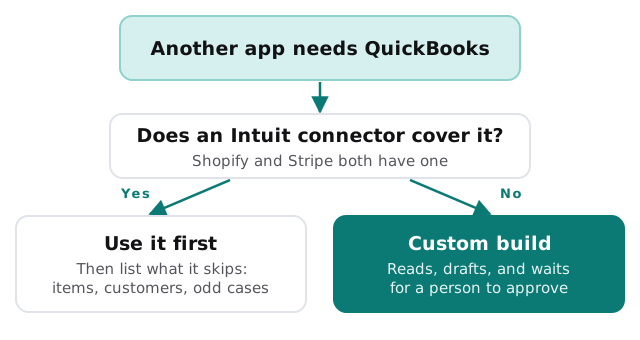
Intuit documents the gaps itself. When a Shopify product has no match, the product is not created for you, and sales fall back to a default “Shopify Sales Item”. The Stripe connector likewise defaults unmatched items to “Stripe Sales”. Those defaults are fine for a small shop and wrong for one that reports by product line.
Build or buy, side by side
| Situation | Usually the right call | Why |
|---|---|---|
| Shopify or Stripe sales into the books | Start with Intuit’s connector | It already handles fees, refunds and payouts |
| A CRM, quoting tool or job system | Custom build | Few ready-made links match how you actually work |
| Product-level detail in reports | Connector plus a small custom step | The default items hide the detail |
| Something nobody has asked for before | Custom build | There is nothing to buy |
What you should receive
A developer who has done this before hands over more than working code:
- A field map. A one-page list of which field in your app lands in which QuickBooks field.
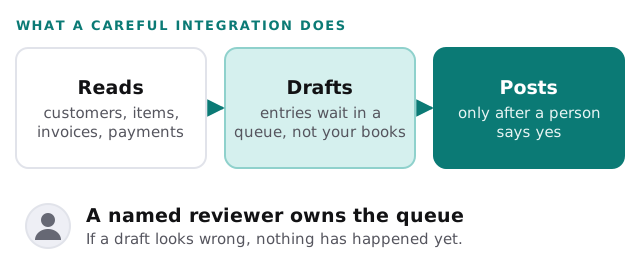
- A review queue. New entries wait as drafts; nothing posts until a named person says yes.
- Duplicate protection. Each source record is remembered, so a retry cannot create a second invoice.
- An error alert. A failure reaches a person, with the record attached.
- An exit plan. A written way to turn it off without leaving orphaned entries.
Questions to ask before you hire
- Which QuickBooks version are you on, and will the work depend on a plan feature you do not have?
- What happens to old transactions: does the first run import history, and from what date?
- Who holds the login that connects the app, and what happens when that person leaves?
- How will you test without touching real books?
- Can the finance person read the logs, or only a developer?
The third question matters more than it looks. Intuit says only QuickBooks Online Admin users can connect and manage apps for a company, and an app connected by someone else has to be taken over through Switch Admin before it can be disconnected. An integration tied to a former employee’s login is a common cause of mystery failures.
Where a person stays in charge
We build the integration; your team keeps the decisions. The software reads, matches and drafts. A person approves anything that changes your ledger, and anything that does not match cleanly is shown to a human rather than guessed. That is also how we would handle a link from your CRM, which we describe in QuickBooks and CRM integration, or the invoice side in QuickBooks invoice matching automation.
Rather set up the basics yourself?
If you are still choosing plans, users and bank rules, our guide to setting up QuickBooks for your team is the place to begin. Come back when a connector leaves a gap that costs your bookkeeper time every week.
What we need from you
- The apps you want connected, and which one is the source of truth for each kind of record.
- A QuickBooks Online Admin who can authorise the connection.
- Ten or so real examples, including the awkward ones: refunds, part payments, odd customers.
- The name of the person who will review the queue.
A good integration is boring. Entries appear as drafts, a person approves them, and nobody thinks about it again.