Most people searching for a Salesforce to HubSpot migration are in one of two places. Either the team has outgrown the cost and complexity of Salesforce and wants to be out of it. Or they want to add HubSpot, and keep Salesforce for a while. The right route depends on which, and HubSpot’s own documentation is blunt that the two tools should not be mixed.
Pick your route first
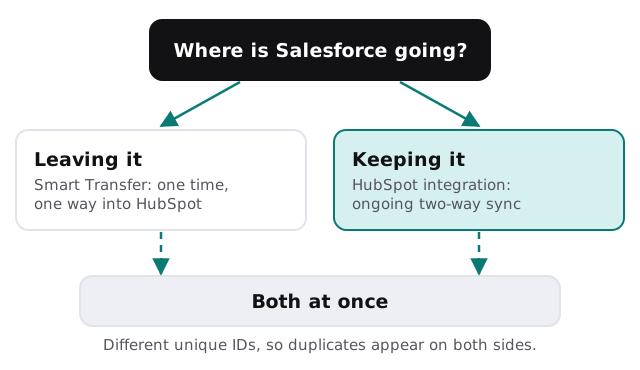
HubSpot Smart Transfer is described as one-way, from other apps to HubSpot, and meant for a one-time migration. It is available on all plans, but only Super Admins can run it. Before you transfer, HubSpot suggests an audit of the source: how each Salesforce object maps, record counts, pipelines and stages, field types, and settings such as users, currencies and date formats.
What moves, and what doesn’t
| Salesforce | Arrives in HubSpot as |
|---|---|
| Accounts | Companies |
| Contacts and person accounts | Contacts |
| Leads | Contacts |
| Opportunities | Deals |
| Cases | Tickets |
| Tasks, events, notes, email messages | Activities |
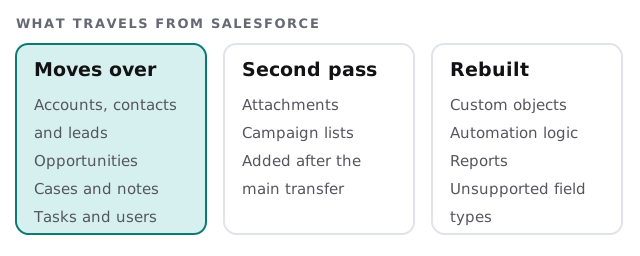
Two details surprise people. First, leads and contacts both become HubSpot contacts, so a person who exists as both in Salesforce needs a decision before it arrives. Second, HubSpot lists some Salesforce field types as unsupported: encrypted strings, junction ID lists, master record, reference and calculated fields.
What you rebuild by hand
Smart Transfer creates and enables workflows that reconcile the differences between the two data models, but it doesn’t carry over your own logic.
- Custom objects. HubSpot says they are not supported. Each one needs its own plan.
- Automation. Flows, approval rules and validation rules are described in a sentence each, then rebuilt or dropped.
- Reports and dashboards. Rebuilt from the questions asked, not copied chart by chart.
- Permissions. Salesforce roles and profiles become HubSpot users, teams and permissions, on the new model.
- Integrations. Anything that wrote to Salesforce has to be pointed somewhere else.
A realistic cut-over
- Audit. Run the audit, count records, and list custom objects and calculated fields.
- Clean first. Merge duplicates in Salesforce, where you know the records best.
- Transfer. Smart Transfer on a Super Admin account, then check totals.
- Second pass. Attachments and campaign lists, loaded separately.
- Rebuild. Workflows, forms and reports, in the order your team needs them.
- Switch. Repoint forms and apps, and set Salesforce to read-only for a time.
The sample review
Before anyone is switched over, two people who live in the CRM open ten or so records they know well: a long-standing customer, a lead that went cold, a deal that was lost. They check that the company is right, that the contacts hang off it, that the deal sits in the right stage, and that the notes read like the ones they wrote. If a record looks off, we fix the mapping rule, not the single record, and run the check again.
Signs it’s time to leave
- You pay for features nobody has opened in a year.
- Only one person can change a field, and they are about to leave.
- The team keeps a spreadsheet next to Salesforce because it’s easier.
If the pain is the setup rather than the tool, a Salesforce consultant review may save you the move. If the real need is something Salesforce and HubSpot both fit badly, a custom CRM may.
What we need from you
- A Super Admin login for HubSpot and an admin login for Salesforce.
- A list of custom objects and who uses them.
- Two people who live in the CRM daily, for the sample review.
- A date when the old system becomes read-only.
A one-time move and an ongoing sync are different jobs. Choose one on purpose, then stick to it.