A Box to SharePoint migration is rarely hard because of the files. It’s hard because Box and SharePoint disagree about a few things, and the disagreements show up on the Monday after cutover. This page covers where they disagree, and the order we work in to keep that Monday quiet.
What Microsoft’s tool does
Microsoft’s Migration Manager copies Box content into SharePoint and OneDrive. Its own FAQ is plain about the behavior, and it’s worth reading before you plan anything:
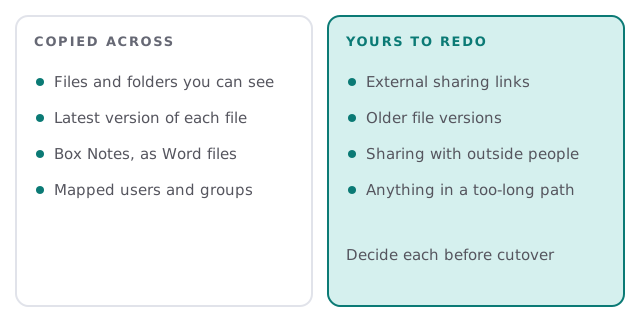
- It copies every file and folder a given Box user can see, and skips what they can’t.
- Box Notes are converted to Word (.docx) files.
- Only the most recent version of each file is transferred.
- External sharing links aren’t recreated, and content isn’t shared with outside collaborators.
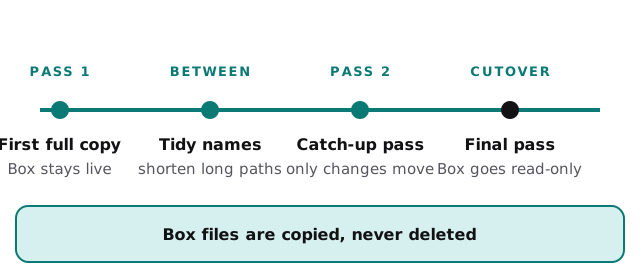
- It never deletes from the source. Box stays intact until you close it.
- It suppresses notification emails, so people aren’t alerted about files appearing.
Three traps, and what to do about them
Renaming mid-move
The tool compares source and destination on each pass. Microsoft warns that a renamed folder looks like a brand-new one, so its whole contents can be copied again and you end up with two copies of a tree. The fix is organizational: nobody renames or reorganizes folders in Box between the first pass and cutover. If you want to tidy, tidy before the first pass or after the last.
Sharing links
Every link you’ve sent a client, an accountant or a supplier points at Box. After the move those links either keep working because you haven’t closed Box yet, or stop. We list the external shares worth keeping, re-share them from SharePoint, and email the people involved with the new address.
Long paths and big files
SharePoint limits an entire decoded file path, folder names plus file name, to 400 characters, and a single uploaded file to 250 GB. Box folders that have grown ten levels deep can hit the first limit. We find those before copying and shorten them by agreement with whoever owns the folder.
The passes
Order of work
- Map people. Box users to Microsoft 365 accounts. A wrong mapping can leave someone without access to their own files, so we check it by hand.
- Design the destination. Which Box folders become team sites, which go to someone’s OneDrive.
- Clean first. Delete the duplicates and the folder called “old stuff” with the owner’s say-so.
- Run the first copy while everyone keeps working in Box.
- Run catch-up passes, fixing what each one shows.
- Cut over. One last pass, announce the new home, and set Box to read-only.
- Keep Box a while, then close it once nobody has needed it.
The first Monday
By then, people should know three things: where their files live now, how to share something with a client, and who to ask when a file looks missing. We send a one-page note the Friday before, with the new address, a short “where did my folder go?” list, and a named person to reply to. Most questions in the first days are about links and about folders that were renamed on the way, so we keep a log of both.
What we need from you
- An admin on the Box account, and one on Microsoft 365.
- A list of any outside people who rely on shared Box links.
- Names of folders owned by people who’ve left.
- A date by which the folder structure is frozen.
- Whoever decides what counts as “old stuff”.
If you’re doing a smaller version yourself, the same ideas apply. Freeze renames, map users carefully and keep the source until the end.
A migration is finished when the last person has stopped opening the old system, not when the last file has copied.