Most OneDrive trouble starts before anyone clicks Sync. A decade of nested folders meets a limit nobody had heard of, a file called something with a colon in it refuses to upload, and a laptop’s Desktop folder turns out to hold the only copy of the year-end spreadsheet. OneDrive setup for small business is mainly about finding those problems first. Here is what to check.
Four limits that cause real support calls
| Limit | What Microsoft says | What it looks like in practice |
|---|---|---|
| File size | 250 GB per uploaded file | Rarely hit, except by video and design files |
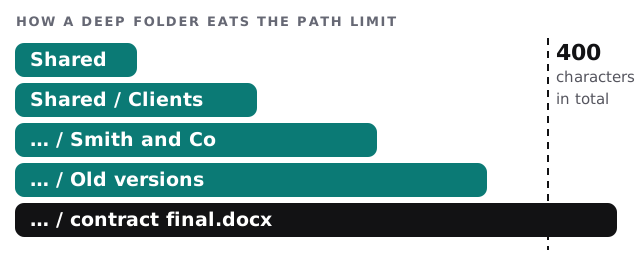
| Path length | The decoded path, including the file name, can’t exceed 400 characters | A deeply nested client folder that refuses to sync |
| Sync volume | For best performance, no more than 300,000 files in one library | A shared archive slows every laptop that syncs it |
| File names | Nine characters are not allowed, and neither are leading or trailing spaces | A file from a Mac or an old server that will not upload |
The disallowed characters are the quotation mark, asterisk, colon, less-than, greater-than, question mark, forward slash, backslash and pipe.
Backing up Desktop and Documents
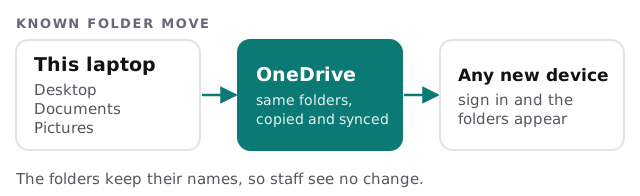
The feature most small businesses want is Known Folder Move. Microsoft’s guide says it covers the Desktop, Documents, Pictures, Screenshots and Camera Roll folders, with two advantages: staff keep using folders they know, and saving files there backs them up to the cloud and makes them available from any device.
Four policies control it. One prompts users to move their folders. One does it silently. One stops users turning it off. One stops them moving folders at all. Microsoft recommends pairing the silent policy with the prompt, so a failed move still reaches the user to fix.
Two caveats from the same guide are worth knowing. Known Folder Move doesn’t work for users who sync OneDrive files from SharePoint Server. And if your office once used the older Windows Folder Redirection policy to send Documents or Desktop to a file share, those settings have to be switched off and the files moved across properly before the OneDrive policies will take effect.
A rollout that doesn’t lose files
- Scan before you switch on. Look for long paths, bad characters and any huge folders on each laptop.
- Check existing redirects. Microsoft warns that if folders are redirected to another organisation’s OneDrive, the user sees an empty Desktop after the move and has to migrate files by hand.
- Sort the old file server. Anything shared stays out of personal OneDrive. If you are leaving a file share, see our page on SharePoint migration for small business.
- Pilot with two people. Let it run for a few days on real work.
- Switch on in groups. Microsoft advises rolling out slowly when users have many files, to limit the network impact of uploading.
- Confirm. Open each machine’s OneDrive settings and check the Backup tab shows the folders protected.
What changes for staff
Almost nothing, if you tell them first. They save where they always saved. The surprises are a cloud icon next to files that are not stored locally and an upload that takes the first afternoon. We write a half-page note covering both.
The mistakes we see
- Treating OneDrive as the place for shared team files.
- Leaving a departing employee’s OneDrive unreviewed.
- Syncing an entire shared library to every laptop.
- Ignoring the red-cross icons until someone loses a document.
Where we help
Our Microsoft 365 setup for small business page covers the suite around it, and moving to new laptops is the natural moment to switch OneDrive backup on. We start with the free IT check and a plan with a fixed quote, and a person on your side approves the folder rules.
OneDrive protects the files you can see. Spend your effort on the ones you can’t: the long paths, the odd names and the forgotten folders.