A SharePoint migration for small business is mostly not about copying files. The copying is the easy part, and software does it. The hard parts are deciding where things should live, who should see them, and how to switch over without a day of lost work. Get those right and the move is almost boring, which is exactly what you want.
Where your files end up
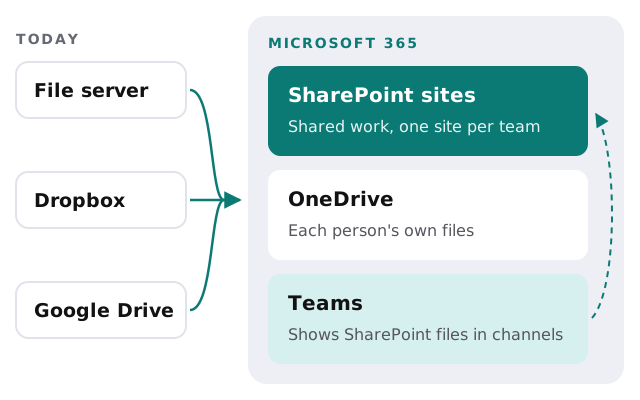
Microsoft 365 splits files across three places, and each one has a job:
- SharePoint sites hold shared work. Usually one site per team or department, with libraries inside for client files, templates and admin.
- OneDrive holds each person’s own drafts and working files. When someone leaves, their work can be handed on instead of disappearing with their laptop.
- Teams shows SharePoint files inside each channel. A file posted in a Teams channel actually lives in a SharePoint library underneath, so there’s one copy, not two.
Most of the confusion after a move comes from people not knowing which of the three to use. A one-page guide settles it.
The limits that trip up migrations
Microsoft publishes the restrictions, and a handful catch out almost every small business:
| Limit | What it means for your files |
|---|---|
| Certain characters can’t appear in names | Files and folders using them have to be renamed before they move |
| Names can’t start or end with a space | Trailing spaces, common in old files, need trimming |
| Microsoft suggests syncing no more than 300,000 items in total | Past that, the sync app on each computer gets slow, so not everything should sync to every laptop |
| 250 GB per file | Old backups and large video files may need a different home |
| Path length limits vary by app | Folders nested many levels deep should be flattened first |
The blocked characters are " * : < > ? / \ and |. A scan before the move finds every name that uses them, so renaming happens on your schedule rather than as a pile of errors on migration night.
How the move runs
- Inventory. List every share and folder, who owns it, and roughly how much is in it.
- Permissions map. Write down who can open what today, and who actually should.
- Cleanup. Delete duplicates and finished projects, fix blocked names, flatten deep folder trees.
- Structure. Agree on the sites and libraries before a single file moves.
- Pilot. Move one team first and let them work in the new home for a few days.
- Cutover. Move everyone else outside working hours, then run a final pass for anything changed since.
- Training. A short session on finding, sharing and syncing files the new way.
- Old drive read-only. Leave it readable but not writable until everyone trusts the new setup.
Give access to groups, not to people
The cleanest SharePoint setups hand out access by group: Partners, Admin, the client team for a particular account. People join and leave groups, and the folders never need touching. When someone starts, you add them to two groups. When they leave, you remove them, and their access to every folder goes with it.
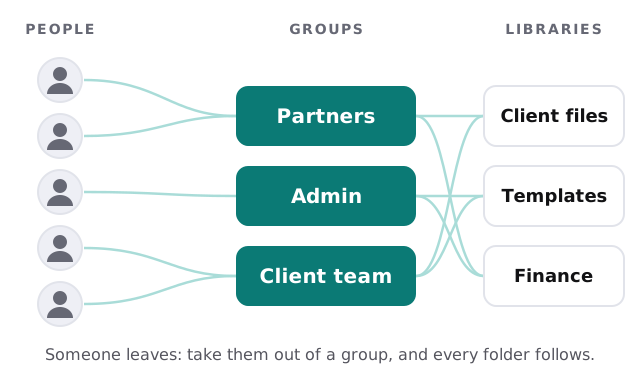
Most messy file shares got that way one exception at a time. A migration is the cheapest moment you’ll ever have to reset them.
Coming from Google Drive instead
The plan is the same; the details shift. Google Docs, Sheets and Slides convert to Word, Excel and PowerPoint files on the way across, so check the formatting on a few of your most complicated documents during the pilot. Shared drives map neatly onto SharePoint libraries, while files in each person’s own My Drive usually belong in their OneDrive.
Links are the other thing to plan for. Old links to Google files stop working once the files move, so bookmarks, email signatures and documents that point at shared folders need updating. A list of the most-used links, made during the inventory step, turns that into a short afternoon job instead of a month of “this link is broken” messages.