An on premise server to cloud migration is mostly a file job and a login job in disguise. The file job is copying shared folders somewhere new. The login job is making sure people, printers and applications find their way there afterwards. If you want to move your office server to the cloud, do the work in an order that lets you back out.
What the server really holds
Servers collect jobs over the years. Before you copy anything, list what yours does.
- Shared folders. The obvious one, and the easiest to move.
- Logins and permissions. Who can open which folder, often set up years ago.
- Mapped drives. The letters on staff computers that point at the old shares.
- Scan-to-folder. The office scanner that saves to a path on the server.
- Applications. Accounting, line-of-business or database software that runs there.
- Backup jobs. Which might be the only copy of everything.
Each one needs a home. Files go to cloud storage. Logins move to your cloud identity. Applications need a decision, which we come back to below.
Scan before you copy
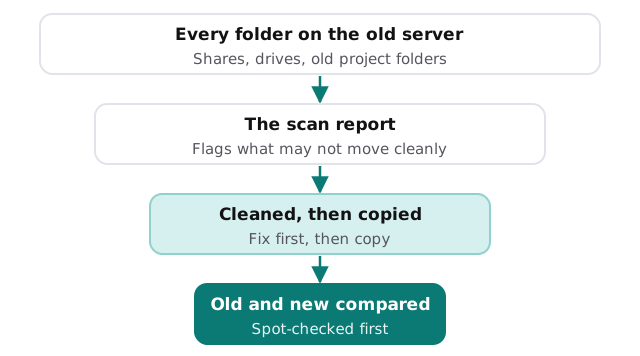
Microsoft’s free SharePoint Migration Tool can copy file shares into SharePoint, OneDrive and Teams. Its process starts with a scan and assessment step before any task is created, because some things won’t move cleanly and it’s better to learn that first. You need admin rights on the destination and read access to the source.
Clean while you scan
The scan is a good moment for housekeeping. Old project folders from people who left, duplicates of duplicates and a folder called “misc” cost nothing to leave behind and a great deal to carry. Agree with the owners of each area what to archive rather than migrate.
Run both, then switch
A migration that switches everyone in a single weekend leaves no way back. A gentler plan runs both systems side by side.
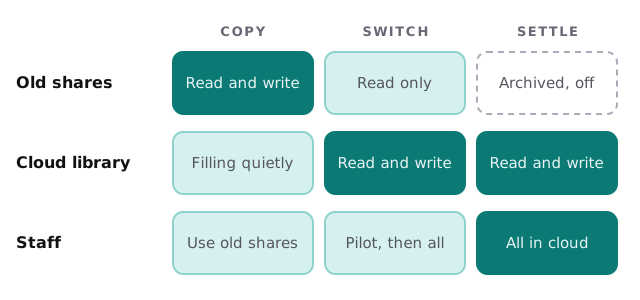
- Copy in the background. The cloud library fills while people keep working on the old server.
- Do a final catch-up copy. Pick up anything changed since the first pass.
- Make the old shares read only. Nobody can quietly save to the wrong place.
- Move a pilot group first. Two or three people who will say what’s confusing.
- Move everyone else. Replace mapped drives with links or synced folders, and update scan-to-folder.
- Keep the old server for a while. Read only, not off, until a full cycle of real work has passed.
What the file copy won’t cover
Permissions are the usual surprise, because folder rights on a server don’t map neatly to cloud sharing. Decide who should see what, then set it up on purpose instead of copying old accidents. Applications that read from the server are the other gap: check with each vendor whether a cloud version exists. For the larger question of what to replace the hardware with, see replacing an old server, and for the destination itself, SharePoint migration for small business.
Signs you’re ready to turn the old server off
- The scan’s problems have been fixed or knowingly dropped.
- A pilot group has worked on the cloud library through a full cycle, such as a month-end.
- Scanners, mapped drives and shortcuts have all been updated.
- A backup of the old data exists and has been opened.
- Nobody has saved anything to the old shares since they went read only.
What we need from you
- Admin access to the server, even if it’s rarely used.
- A list of the software that runs on it, and who supports each product.
- Who owns which folders, so someone can decide what gets archived.
We start with the free IT check, then give you a plan and a fixed quote. A real person replies within one business hour, Monday to Friday, 9am to 5pm Pacific.
Don’t turn the server off when the copy finishes. Turn it off when you’ve gone a full cycle without needing it.