A Microsoft 365 to Google Workspace migration looks simple on a diagram: copy the mailboxes, change the mail record, done. The work is in the details that don’t copy. If you want to migrate Office 365 to Google Workspace without surprises, start by sorting everything into three piles.
Three piles
Google publishes what its Exchange Online import does and doesn’t bring across. Sorted into piles, it looks like this.
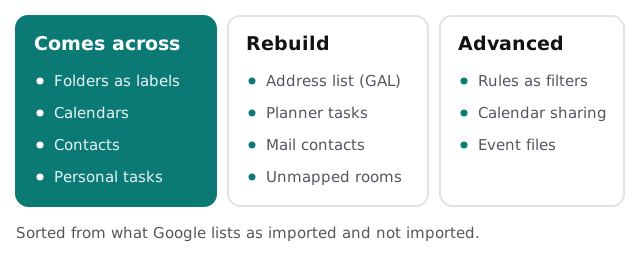
What comes across
Email arrives from every folder and subfolder, with folders turning into Gmail labels. Primary and additional calendars come across with recurring events and Teams meeting links. All non-deleted contacts import, with folders and categories becoming labels. Personal Microsoft To Do tasks move to Google Tasks.
What you rebuild
Mail contacts and the Global Address List don’t import. Neither do Planner tasks, resource calendars without a mapping, or messages over 150 MB. Only one mobile number per contact comes across. These need a decision before the move: re-create, replace with a shared contact list, or let go.
Picking the import method
Google documents two methods for Exchange Online. Its overview lists a default method for organizations of up to 1,000 users and an advanced method for larger ones. The detail matters more than the headcount, though.
| Default method | Advanced method | |
|---|---|---|
| Email, calendars, contacts | Yes | Yes |
| Outlook rules as Gmail filters | No | Yes, if you switch the setting on |
| Calendar permissions | No | Yes |
| Event attachments | No | Yes |
| Extra setup | Lighter | An app registration on the Microsoft side |
If shared calendars or heavy rule use matter to your team, the advanced method is worth the extra setup even at a small headcount. Calendar sharing in particular is easier to carry over than to rebuild by memory.
The mail switch
Mail is the part people notice, so it’s timed carefully. The copy runs in the background while Microsoft 365 still receives mail. Then the MX record, the DNS entry that tells the world where your mail goes, is switched. From that moment mail lands in Google.
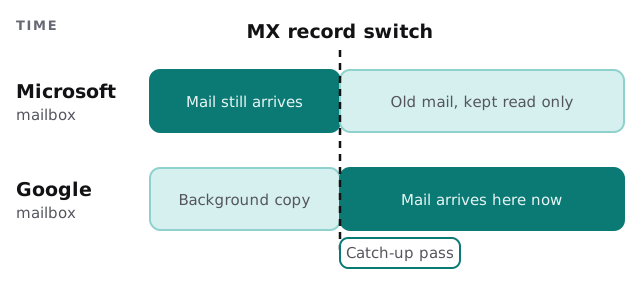
A catch-up pass after the switch collects anything delivered in between. Don’t run it blindly twice: check Google’s notes on re-running imports, particularly for contacts, before you repeat a step.
What Monday looks like
Picture the first working day after the switch. Everyone signs in to Gmail and finds their old folders as labels. A few people notice their Outlook categories are gone, and one asks where the company address list went. If you’ve sorted the piles beforehand, each of those has an answer ready, usually a shared contact list built before the move and a one-page note to staff.
Things people forget
- Shared mailboxes. Map each to a Google group set up as a collaborative inbox, or to a user who shares access.
- Phones and Outlook. Everyone needs the new account added, and the old one removed.
- Files. Documents in OneDrive and SharePoint are a separate move. Google lists import options for both, and they deserve their own plan.
- Signatures and auto-replies. They live in each user’s settings and don’t travel.
- Devices that send mail. Scanners and printers often point at Microsoft and need new settings.
Our page on moving the other way, from Google to Microsoft 365 covers the mirror image, and email migration for small business covers the general method.
What we need from you
- A list of users, shared mailboxes and any rooms or equipment that people book.
- Admin access to your Microsoft 365 tenant and to your domain’s DNS.
- Your decision on which of the “rebuild” items matter enough to recreate.
We start with the free IT check, then give you a plan and a fixed quote. A real person replies within one business hour, Monday to Friday, 9am to 5pm Pacific.
Everything Google says it doesn’t import is a decision you can make in advance, or a surprise you can have later.