Copilot looks simple in a demo and surprising in a real tenant. A Copilot readiness assessment is the short piece of work that sits between “we should try it” and a purchase order. It checks what Microsoft requires, then looks at the thing nobody lists on a spec sheet: how your files are shared today.
A naming note: Microsoft’s documentation now calls Microsoft 365 Copilot “Microsoft Copilot”, and Copilot Chat has dropped the “365” too. You’ll see both names online. They describe the same product family.
What we check, layer by layer
Each layer comes from Microsoft’s published requirements. If one is missing, the experience either won’t appear or won’t work properly for that person.
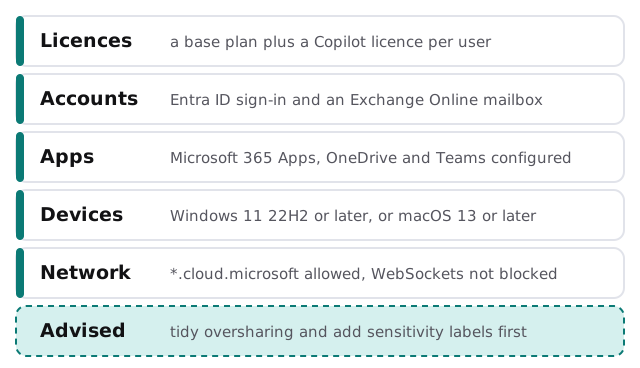
Licences: Copilot and Copilot Chat
| Microsoft Copilot | Copilot Chat | |
|---|---|---|
| Base Microsoft 365 subscription | Required | Required |
| Copilot licence | Required | Not required for eligible users |
| Entra ID work or school account | Required | Required |
| Exchange Online mailbox | For mailbox features | Only where mailbox data is used |
That split matters when you’re deciding who gets what. A few people may justify a full licence while everyone else is fine with the chat. We work out which group each person belongs to. Microsoft also notes that Copilot isn’t available with device-based licensing for Microsoft 365 Apps for enterprise, which is worth knowing before you plan.
The details people miss
- Meetings. For Copilot to refer to a Teams meeting after it ends, transcription or recording has to be turned on.
- Updates. The Office Feature Updates task must run on its regular schedule for core features in Word, Excel and PowerPoint.
- Cookies. Third-party cookies must be enabled for Copilot in Word, Excel and PowerPoint for the web.
- Network. Microsoft asks you to allow the whole
*.cloud.microsoftdomain and to check that WebSocket connections aren’t blocked. - Group mailboxes. Copilot isn’t available in group mailboxes.
The part that isn’t a requirement
Microsoft says a secure and governed foundation isn’t required but is strongly recommended. In plain terms: before you switch Copilot on, look at who can open which folders. A shared drive that was “temporarily” opened to everyone in 2019 is the classic example. Microsoft points to SharePoint Advanced Management and Purview for finding and fixing this.
How the assessment runs
- Read-only review. We look at licences, accounts, devices and settings in your tenant with access you grant and can remove.
- Test a few people. We check a sample of real users against Microsoft’s own diagnostic for licence details.
- Map sharing. We list the folders and sites that are open wider than they should be.
- Write the verdict. Each group of users lands in one of three places.
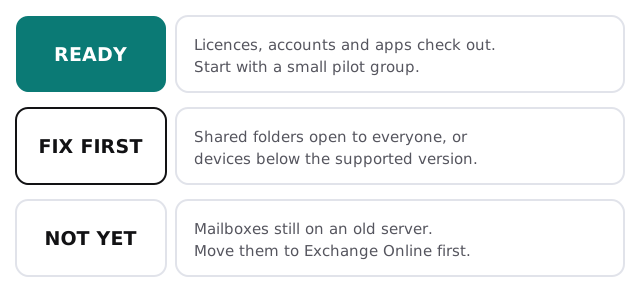
Planning the pilot
A pilot group of a few willing people, with a real task each, teaches you more than a company-wide launch. We pick people from different teams, agree what “useful” means in advance, and review what they found before anyone else is switched on. That’s the heart of Copilot deployment planning.
What you get
A written readiness report, a fix list in priority order, a suggested pilot group and a plan with a fixed quote for the fixes. If you’d rather start the setup yourself, our guide to setting up Microsoft 365 Copilot for your team walks the admin side, and the sharing cleanup overlaps with Microsoft 365 support. Write down how your team may use it too: our guide to writing an AI use policy is a good start.
Buy Copilot seats after the sharing cleanup, not before. The tool will show people exactly what they can already reach.