A Dropbox to SharePoint migration isn’t really about moving files. Files are the easy part, because Microsoft’s Migration Manager copies them. The hard part is deciding who should see what once they land, and Dropbox and Microsoft 365 describe people in different ways. That’s why the first job is a table, not a copy.
The identity map comes first
Microsoft’s own setup runs in six steps: connect to Dropbox, scan and assess, copy to the migrations list, review destinations, map identities, then migrate and monitor. The fifth step is the one that decides how Monday goes. You map Dropbox domains, groups and users to their Microsoft 365 counterparts, and Microsoft says that when identities are fully mapped, content is reshared automatically so each person keeps access to what they had.
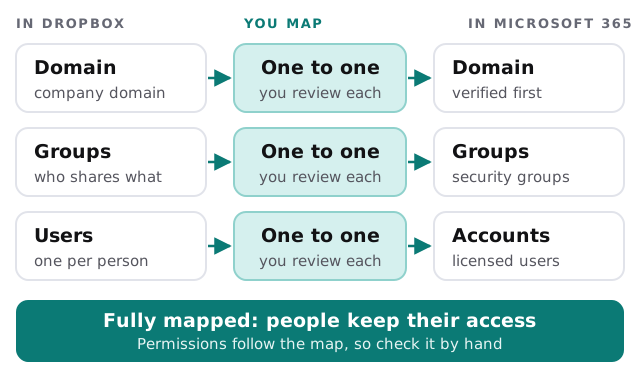
Mapping sounds mechanical until you meet the real data. Someone has a personal email address in Dropbox and a work address in Microsoft 365. A former employee’s folder still has shared links. Two people share a first name and a mailbox alias. We go through the list line by line before anything is copied.
Where each Dropbox thing lands
| In Dropbox | Lands in Microsoft 365 | What you do |
|---|---|---|
| A member’s own folder | That person’s OneDrive | Confirm the account mapping |
| A team folder | A SharePoint site or Teams channel library | Choose the site, then review the destination path |
| A group’s shared folder | A site with matching group permissions | Map the group, not each person |
| An external share link | Nothing, it isn’t recreated | List it, then re-share by hand |
| Old file versions | Nothing, only the latest is copied | Export first if anyone needs them |
Two cautions sit behind that table. Microsoft’s tool copies everything a Dropbox user can reach and leaves out anything they can’t, so a file that nobody has access to is skipped without any fuss. It also doesn’t share content with external collaborators, which Microsoft describes as a protective policy.
The rename trap
Migration Manager runs more than one pass. After the first full copy, each later pass compares source and destination and moves only what’s new or changed. That’s quick, but it has a catch Microsoft spells out: a renamed file or folder is treated as a brand-new object.
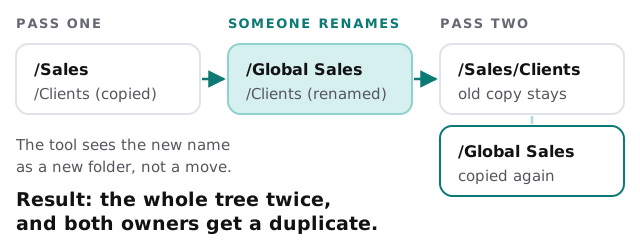
In practice, that means a tidy-minded colleague can double a folder by reorganizing on a Thursday. We ask everyone to stop renaming and moving things in Dropbox between the first pass and cutover, and we say so in writing.
Order of work
- Check your access. The person running the migration needs a Microsoft 365 role such as Migration Administrator, SharePoint Administrator or Global Administrator, plus read access to each Dropbox account being moved.
- Scan first. The tool’s scan produces reports about anything that could block the move, such as unsupported files or file sizes over its limits.
- Decide destinations. Team folders to sites, personal folders to OneDrive. We sketch it on one page for the owner to approve.
- Map identities and review the result.
- Run the first copy while everyone keeps using Dropbox.
- Repeat catch-up passes. Each is faster than the last.
- Cut over. One final pass, a short announcement, and Dropbox set to read-only.
What a quiet cutover day looks like
On the last day, nobody should be surprised. People know where their folders went, they know who to ask, and clients with shared links have already been sent new ones. Microsoft lets you customise the email notifications the tool sends, so you decide what people hear and when, rather than letting an alert land in the middle of a meeting.
We keep Dropbox in read-only for a while afterwards. That way a missing file is a search, not a crisis.
What we need from you
- Admin access to Dropbox and to Microsoft 365.
- A list of clients and suppliers who rely on shared links.
- Names of people who have left but own folders that still matter.
- The date after which nobody renames folders.
- Someone who can say which old folders can be left behind.
Dropbox didn’t lose your permissions in the move. They were lost, if at all, in the map.