Most small offices start with a spreadsheet of who has which laptop and a hope that everyone installed the updates. That holds until somebody leaves a laptop in a taxi, or a phone with company email gets sold on. Intune setup for small business is the fix for that gap. It is Microsoft’s cloud service for managing devices and apps, and Microsoft’s documentation describes it as running entirely in the cloud with no on-premises infrastructure required.
Two ways to manage, chosen per device
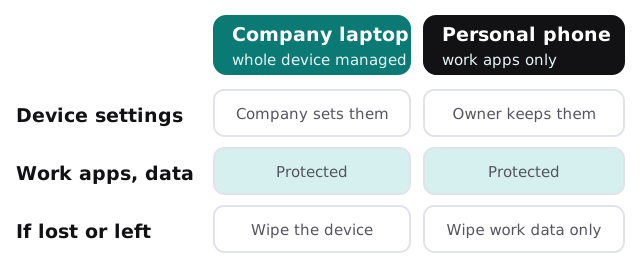
Intune supports two modes, and you can use them side by side. Microsoft’s overview describes them as follows.
| Mode | What it covers | Where we use it |
|---|---|---|
| Device management (MDM) | The whole device: settings, security, apps, and a wipe if it is lost | Company-owned laptops and phones |
| App management (MAM) | Only the work apps and the data inside them | Personal phones that read work email |
The split matters because staff are rarely happy handing over a personal phone. App-only management protects Outlook and Teams data while leaving photos and personal apps alone. When someone leaves, only the organisation’s data is removed.
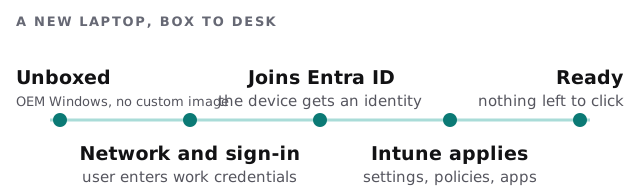
A new laptop with Windows Autopilot
Autopilot is how Intune gets a new Windows laptop ready without anyone re-imaging it. Per Microsoft’s overview, it uses the version of Windows already on the device, then applies settings, policies and apps. The only interaction required from the person is to connect to a network and verify their credentials. Microsoft also notes that automatic enrolment into Intune needs a Microsoft Entra ID P1 or P2 subscription for configuration, so we check your licences before promising this.
How Intune decides who gets in
Intune does not hold your sign-ins itself. It relies on Microsoft Entra ID for users and groups, and policies are assigned to those groups. Device health then flows back: Intune reports whether a device is compliant, and Conditional Access can use that, with other signals, to allow or block access to company resources. A laptop that has skipped its updates can be refused until it catches up.
The first policies we set
- Disk encryption on every laptop.
- A screen lock after a short idle time.
- A minimum operating system version.
- Work apps installed automatically for each group.
- A simple compliance rule that blocks devices missing the basics.
Keep it short. Twenty policies nobody understands cause more help requests than they prevent.
Rolling it out in order
- List the devices. Every laptop, phone and tablet that reads company data, and who owns it.
- Check licences. Each managed user or device needs an Intune licence, and Microsoft offers a 30-day trial to test with.
- Pilot with two people. One technical, one not, on real work for a week.
- Write the staff note. What changes, what we can and cannot see, who to ask.
- Enrol in waves. A few people at a time, fixing what we learn before the next group.
- Review monthly. Which devices are non-compliant, and why.
Where setups go wrong
Most trouble comes from process, not software. Staff are enrolled before anyone told them why. A compliance rule is switched on for everyone on a Friday afternoon, and a dozen people find they cannot open email. Departing staff are removed from the directory but their phones were never enrolled, so there is nothing to wipe. A good rollout tests each rule on a small group first, keeps an exceptions list that someone owns, and ties enrolment and removal to the same checklist you already use when people join and leave.
What we need from you
- A device list, even a rough one.
- Whether staff use personal phones for work.
- Your Microsoft 365 plan, so we can check the licensing.
If you are also tightening device protection, our page on endpoint protection for small business covers the security side, and setting up new laptops is the companion to Autopilot. We start with the free IT check, then a plan and a fixed quote.
Decide per device whether you manage the whole thing or only the work inside it. Most of the staff push-back comes from skipping that question.