Buying security software and turning it on are two different things, and plenty of small offices have only done the first. Microsoft Defender for Business setup closes that gap. According to Microsoft, it is an endpoint security product designed for businesses of up to 300 users, protecting devices from ransomware, malware, phishing and other threats. You can do the work in an afternoon if the groundwork is right.
Check what you already pay for
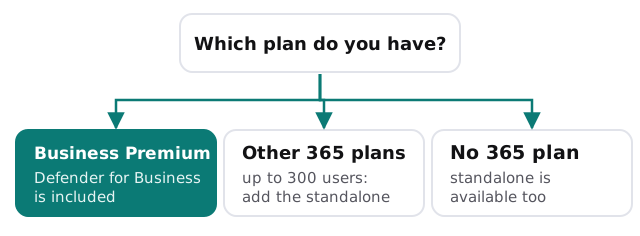
Microsoft lists two ways to hold it: as a standalone product, or inside Microsoft 365 Business Premium. Standalone is for eligible Microsoft 365 or Office 365 organisations with up to 300 users, such as Business Basic, Business Standard or Office 365 E1, and for organisations without Microsoft plans.
The setup order Microsoft lays out
Microsoft’s own setup guide lists six stages. We follow them in the same order, because skipping ahead is how alerts end up with nobody.
- Get the product. Start a trial or paid subscription, or confirm Business Premium. Opening Assets, then Devices, in the Defender portal starts provisioning.
- Add users and assign licences. Microsoft says to make sure multifactor authentication is enabled for all users, so we check that here.
- Give your security team roles. A Security Administrator can view and edit settings and act on threats. A Security Reader can see reports but change nothing. Most small offices need one of each.
- Set up email notifications. When an alert fires or a new weakness is found, the named people are emailed, even away from their desks.
- Onboard devices. The sooner they are onboarded, the sooner they are protected.
- Review the policies. Defender ships with default policies for next-generation protection and firewall, built on recommended settings.
The setup wizard covers roles, notifications, Windows onboarding and the default policies in one pass. Microsoft says using it is optional, and you can finish manually if it is closed early.
What day one actually covers
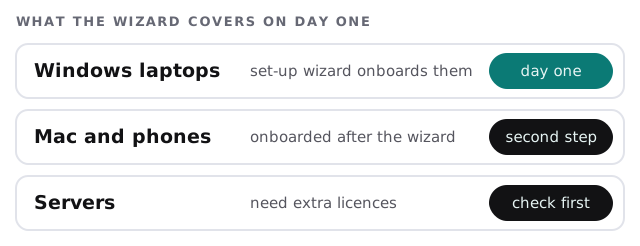
The wizard’s device step applies to Windows devices only. Other devices come afterwards. If your Windows devices are already enrolled in Intune, Microsoft offers automatic onboarding, and recommends the all-devices-enrolled option so new laptops join protection as they are enrolled. Defender for Business does support Mac, iOS and Android through apps. Protection for Windows and Linux servers needs extra licences, so servers are a separate decision.
Week one, after the switch is on
Look at what it found
Review the first alerts and recommendations together. Some will be real, such as a laptop missing updates. Some will be noise from an old tool, which you tune out deliberately rather than ignore.
Test the route
Send a test alert and watch it arrive. If the notified person is on leave or has left, you want to know now.
Write down who does what
- Who reads alerts, and how fast.
- Who may isolate or remove a device.
- Who tells staff something is happening.
Signs setup was only half done
- The device list shows far fewer machines than people in the office.
- The alert emails go to a shared mailbox that nobody opens.
- Everyone is a Security Administrator, so nobody is accountable.
- A new starter’s laptop was handed over without being onboarded.
- The policies are still exactly as they came out of the box, and nobody has checked whether they suit the way you work.
Each of these takes minutes to fix, but only if someone looks.
Where we fit
You can do this yourself with Microsoft’s guide. We are useful when the licence picture is tangled, when Macs and phones are mixed in, or when nobody on your side wants to own the alerts. For the wider picture, see endpoint protection for small business and Microsoft 365 setup for small business. Our plan and fixed quote comes after the free IT check, and a person on your side approves any change that affects how staff work.
Protection that nobody watches is only a logo in the system tray. Name the people before you onboard the devices.