Mobile device management for small business sounds like an enterprise tool, until a salesperson loses a phone with a year of client email on it. Then it’s a simple question: can you lock it, and can you clear the company’s data without waiting for it to turn up? If you’re deciding how to manage company phones, start with who owns them.
Whose phone is it?
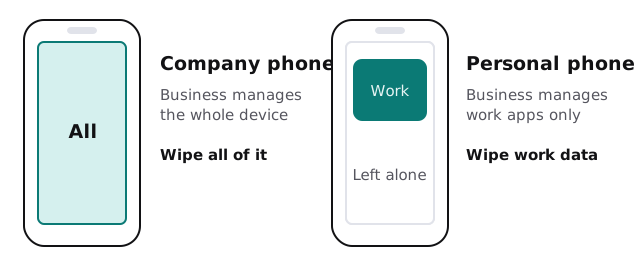
Microsoft’s Intune describes two modes you can use alone or together. Mobile device management enrols the whole device, so you can manage its settings, security and apps, and wipe it if it’s lost or stolen. Mobile application management covers only the work apps and the data inside them. It’s typical for personal phones, because the owner keeps control of everything else.
What each platform gives you
| What you want | Microsoft 365 with Intune | Google Workspace |
|---|---|---|
| Manage the whole device | Device management: enrol, then manage settings, security and apps | Advanced mobile management; users install a management app |
| Protect work apps only | App management on the work apps and their data | Basic mobile management, on by default: password requirements and Android app management |
| A phone is lost | Wipe the device | Remote device wipe sits under advanced management |
| Someone leaves | Selectively wipe organization data | Wipe the user’s account from the device |
Neither is better in the abstract. The right choice follows the platform your email and files already live in.
Setting a policy people follow
Policy fails when it surprises people. A short, plain rule works better than a long one.
- Sort the phones. Write down which are company-owned and which are personal, by person.
- Pick a mode for each group. Company phones get whole-device management. Personal phones get work-app protection.
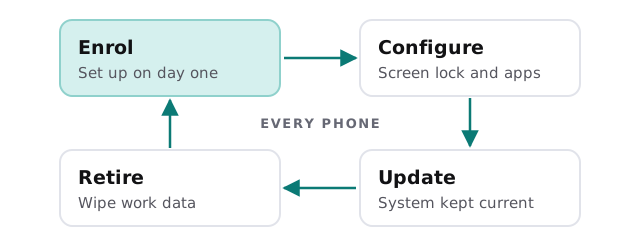
- Decide the minimum. A screen lock, a current operating system and a way to remove company data. Not much more.
- Tell staff before you enrol anyone. Say what you can see, what you can’t, and what a wipe does.
- Enrol a small group first. Two people, ideally one with iOS and one with Android, to find out what’s confusing.
- Write down the exit. What happens to a phone, and to the data on it, when someone leaves.
A phone’s working life
If you have a lot of Windows laptops as well as phones, Intune setup for small business covers the same tool from the laptop side, and IT support for field teams looks at phones that spend the day away from the office.
What your staff will notice
- A prompt to install a company app or portal on day one.
- A screen lock they may not have used before.
- Work email and files that only open in approved apps.
- A clear answer when they ask, “Can you see my photos?”
That last point decides whether the rollout goes smoothly. On a personal phone, the honest answer with app-level management is that the business manages the work apps and their data, not the rest of the device.
Mistakes to steer clear of
Managing personal phones like company ones is the usual one: it feels thorough, and staff resent it. The opposite error is leaving company phones unmanaged because “it’s just email”. Another is forgetting the leaver step, so access stays long after someone is gone.
Whichever mode you choose, write the rule down in one paragraph and give it to everyone who carries a work phone. A policy nobody has read can’t protect anything, and a policy people understand is far easier to enforce kindly. Review it when you add a new kind of device, such as tablets for the shop floor.
Monthly care from us covers access controls, backups and updates, and phones fall under access controls. The free IT check starts with a list of who carries what, then you get a plan and a fixed quote. A real person replies within one business hour, Monday to Friday, 9am to 5pm Pacific.
Decide whose phone it is first. Everything else about managing it follows from that.