If you want to automate data entry from emails, begin by noticing how much of your week is the same small act: open a message, find the customer name, copy it into a sheet, find the date, copy that too. It’s not hard work. It’s the sort of work that makes a good employee quietly resent a Friday afternoon, and it’s where typos creep into your numbers.
Which emails are worth automating
Not every email deserves it. The ones that do share a pattern: lots of them, the same few fields each time, and a clear place they should end up.
| Kind of email | Fields usually pulled | Ends up in |
|---|---|---|
| Orders and requests | Customer, items, quantity, date | Order sheet or job system |
| Booking confirmations | Name, date, time, reference | Calendar and tracker |
| Supplier invoices | Supplier, amount, due date | Accounting inbox or sheet |
| Web or marketplace notifications | Buyer, item, address | Fulfilment list |
| Enquiries by email | Name, contact, what they want | CRM |
If an email arrives a few times a month in random shapes, leave it manual. The savings are in volume.
What the tool actually does
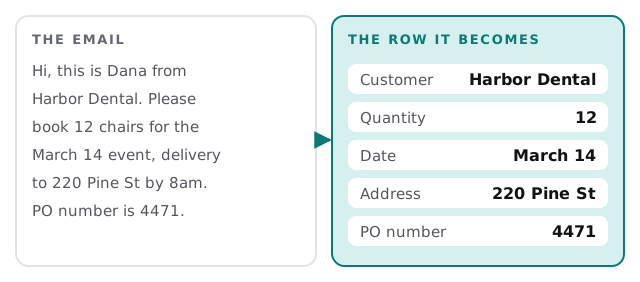
An AI step reads each message and picks out the fields you named. Unlike older rule-based tools, it doesn’t depend on the sender using the same layout, so “12 chairs,” “twelve chairs” and “chairs x12” all become the number twelve.
How we set it up
- Collect real examples. Twenty to thirty actual emails, including the awkward ones, because those decide the design.
- Name the fields. Exactly what you want out, and what each field is called in your sheet.
- Choose the destination. A spreadsheet is a fine start; a CRM or your own system comes next when the pattern is steady.
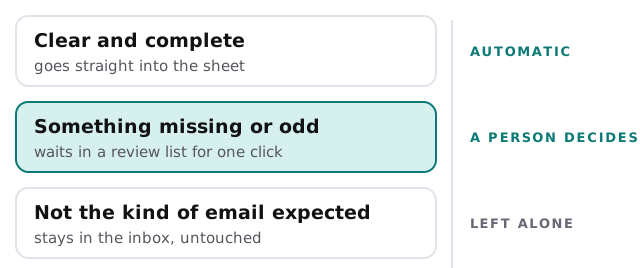
- Set the rules for doubt. What counts as unclear, and who looks at it.
- Test on last month. Run it over old emails and compare to what was typed by hand.
- Switch on, watch the first week, then loosen the supervision as it proves itself.
Three outcomes, not two
Most automation either works or breaks. This one has a middle route, and it’s the part that makes it safe.
Where it goes wrong, and how we guard against it
- Look-alike fields. A delivery date and an invoice date can sit side by side. We test those pairs on your real emails before going live.
- Forwarded chains. Quoted history can hold older numbers. The tool is told to read only the newest message.
- Duplicates. The same order sent twice shouldn’t become two rows, so each row keeps a reference to its email and repeats are caught.
Signs you’ve outgrown retyping
- The person who does the entry is also the person who knows what’s wrong in the data.
- Numbers from the sheet and numbers from the emails don’t match at month end.
- Entry slips whenever someone’s away.
- You’ve lost an order because it sat unopened in one inbox.
- You keep adding columns to catch “one more thing” from the email.
Do it yourself first?
If your email is simple and you want to try before you hire anyone, setting up Zapier for your team or setting up Make for your team shows how to connect an inbox to a sheet. You may get a long way on one or two fixed-format senders. The point where it’s worth asking for help is when formats vary, attachments matter, or a wrong entry costs you money.
What we need from you
- A shared mailbox, or a rule to forward the right emails into one.
- Those example emails, with the correct row written beside each.
- A decision on what happens when a field is blank.
- Who looks at the review list, and how often.
Retyping isn’t a skill. Checking is. Let software do the first and keep a person for the second.